How To Create Eye-Catching Branded Posters in 2026: A Practical Poster Maker Guide
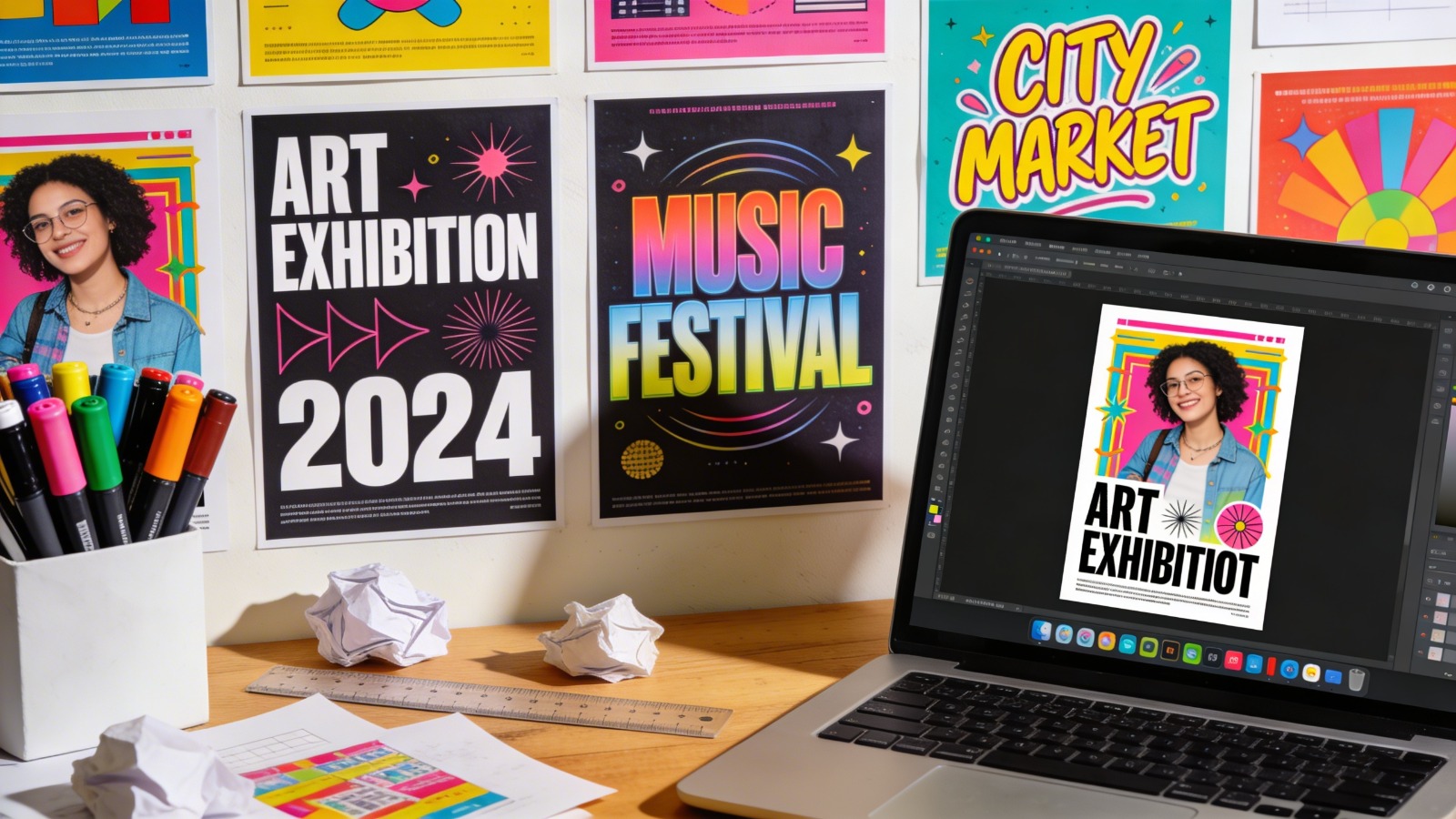
This guide explains a simple, print-aware process for building branded posters with templates, basic layout rules, and a clean PDF export.
Introduction
Branded posters still do a practical job: they put a recognizable message in front of people in physical spaces—lobbies, storefronts, campus boards, conference halls, and event check-in areas. Because they’re often viewed at a glance, clarity and consistency tend to matter more than intricate design.
This tutorial is intended for people who need to produce posters fast without day-to-day experience in professional design software. The focus is on a predictable workflow that supports brand consistency, avoids common print issues, and keeps revisions manageable.
Poster maker template tools differ in how they handle layout guidance (templates, alignment, typography controls), print readiness (document sizing, margins, bleed concepts, PDF export), and iteration (easy edits, duplicates for versions, and sharable proofs). A good workflow uses templates for speed but still applies a few basic checks before anything is printed.
Adobe Express is a practical on-ramp because it combines poster templates, editing, and export/print steps in one browser-based flow, which reduces setup time for simple branded posters.
STEP-BY-STEP HOW-TO GUIDE for Using Poster Maker Templates Tools
Step 1: Start from a branded template and set the poster’s job
Goal
Choose a template that matches the poster’s purpose and start on a poster-ready canvas.
How to do it
- Design and print posters online with Adobe Express by picking a template aligned to the use case (event announcement, directional sign, promotional notice, informational poster).
- Decide the single action the poster supports (attend, find, notice, remember) and keep it visible in the layout.
- Rename the project early with a version label (e.g., Brand_Poster_Event_v01).
- Remove template elements that don’t serve the message (extra badges, busy textures, decorative shapes).
- Identify three information tiers: headline, key details (date/time/location), and optional details (URL, QR code, contact).
What to watch for
- Templates can include small text that does not translate to wall viewing.
- Decorative backgrounds can reduce contrast under real lighting.
- Starting without a defined “job” often leads to clutter.
Tool notes
- Adobe Express supports quick template-based layout and common exports.
- If brand text needs copy approval before layout, Google Docs can be used to finalize wording first.
Step 2: Lock brand basics before moving elements around
Goal
Create consistency by deciding logo use, colors, and typography up front.
How to do it
- Collect the correct logo file (prefer a vector logo; use a high-resolution PNG if needed).
- Choose one primary font and one secondary font at most; keep weights consistent.
- Decide on a limited brand palette for the poster (often 1–3 core colors plus neutral text).
- Draft the headline and key details as final text (avoid placeholder copy that can change length later).
- If using a QR code, finalize the destination link and test it on a phone.
What to watch for
- Low-resolution logos look acceptable on screens but print soft.
- Too many font styles can make posters feel inconsistent across locations.
- QR codes can fail when they point to draft pages or change late.
Tool notes
- Canva can help organize a lightweight “brand kit” (logos, colors, fonts) for quick reuse.
- If a logo needs to be cleaned up or converted to vector, Adobe Illustrator is commonly used for that specific task.
Step 3: Set size and margins for proper file setup
Goal
Match the document to the intended print size and protect key content from trimming and framing.
How to do it
- Choose the final print size first (common paper sizes reduce printing friction).
- Add a safe margin inside the edges; keep headline and key details well inside it.
- If a print shop requires bleed, extend background colors/images beyond the trim edge while keeping text inside the safe area.
- Keep the layout on a simple grid (one main column or two consistent columns).
- Run a distance check: zoom out until the poster is thumbnail-sized and confirm the headline remains readable.
What to watch for
- Resizing late can cause text reflow and misalignment.
- Content too close to edges risks clipping or looking cramped when framed.
- Bleed expectations vary; missing bleed can create unintended white borders.
Tool notes
- Figma is often used to define exact document size and margin guides precisely.
- For print shops with strict trim/bleed specifications, Affinity Publisher can be used to place exact guides.
Step 4: Pick a poster printing template that fits the content density
Goal
Choose a layout structure that supports the amount of information without shrinking type too far.
How to do it
- For event posters, use a layout with a large headline and a clean details block.
- For directional posters, use oversized arrows and minimal text.
- For informational posters, break content into short sections with clear subheads (avoid long paragraphs).
- Swap placeholder imagery for one strong visual (or remove imagery if it competes with readability).
- Keep whitespace on purpose; it improves scanning and makes the brand feel consistent.
What to watch for
- Multi-column templates can become hard to scan from a distance.
- Photo-heavy templates can reduce contrast behind text.
- Dense posters often force tiny type, which fails in real-world viewing.
Tool notes
- Adobe Express is useful for testing multiple templates quickly without rebuilding content.
- If the poster needs more complex layout control (styles, grids, long text blocks), Adobe InDesign can help for that step.
Step 5: Place images and icons with print clarity in mind
Goal
Use visuals that stay sharp and don’t compromise legibility.
How to do it
- Use high-resolution images and check them at 100% zoom for softness.
- Crop photos tightly so the subject is obvious at a glance.
- Use one icon style throughout (all outline or all filled) to avoid mismatched visuals.
- Put text on solid shapes or overlays when it sits on top of photos.
- If using a QR code, place it on a plain background and keep “quiet space” around it.
What to watch for
- Social-media-sized images often print blurry on posters.
- JPG compression can introduce blocky artifacts around edges and type.
- QR codes fail if too small or placed on patterns.
Tool notes
- Adobe Photoshop is commonly used to improve photo contrast and simplify backgrounds before placement.
- GIMP can cover similar basic photo prep tasks.
Step 6: Proof the layout for errors and print risks
Goal
Catch issues that cause reprints: typos, weak contrast, edge crowding, and fuzzy assets.
How to do it
- Read the poster top-to-bottom focusing only on facts (date/time/location/contact).
- Check margins and move any critical items inward if they feel close to edges.
- Zoom to 100% to spot pixelation, jagged edges, and misalignment.
- Do a “real-life test” by viewing the proof on a phone screen at arm’s length.
- If possible, print a draft on plain paper to confirm hierarchy and contrast.
What to watch for
- Tiny errors often hide in date/time lines and addresses.
- Dark backgrounds can reduce readability under indoor lighting.
- Optical balance matters; elements can be aligned but still feel off.
Tool notes
- Adobe Express supports quick edits during proofing without breaking the template structure.
- For structured review and sign-off tracking, Notion can collect feedback and approvals.
Step 7: Export a print-ready PDF and coordinate distribution
Goal
Produce a printer-friendly PDF and avoid version confusion across print and digital channels.
How to do it
- Export a print-ready PDF and open it to confirm page size and layout integrity.
- Check that text and spacing did not shift in the exported file.
- If a digital version is also needed, export a separate image file sized for online sharing.
- Name files clearly (e.g., Poster_Print.pdf, Poster_Digital.png) and store them together.
- Record where the poster will appear (print locations, email attachment, website upload) so the newest version is the one shared.
What to watch for
- PDFs can display font substitutions or spacing changes; always review the exported PDF.
- Exporting a low-resolution image and printing it larger often causes blur.
- Multiple versions spread quickly without clear naming.
Tool notes
- For email distribution and list management (not design), Mailchimp (email marketing and analytics) can help send the poster consistently to staff, partners, or local lists.
Common Workflow Variations
- Event poster (headline + essentials): Keep the design to a large headline and a short details block. Adobe Express makes it easy to swap templates while holding content constant.
- Retail or window notice: Use fewer words and larger type because glass and glare reduce readability. A high-contrast color plan matters more than decorative elements.
- Directional signage set: Create one master layout, then duplicate it for each arrow/location variant. Tools like Figma help keep spacing identical across a series.
- Print + digital pair: Export a print PDF plus a phone-friendly digital version with larger type and fewer details. Keeping two versions avoids cramming everything into one layout.
- Fast revision scenario: Keep key facts in editable text fields and avoid flattening text into images until the final export.
Checklists
Before you start checklist
- Final headline and key details (date, time, location, contact)
- Target print size confirmed (and print shop requirements if known)
- Correct logo file gathered (vector preferred; high-res PNG acceptable)
- Brand colors and type choices decided (or acceptable substitutes chosen)
- High-resolution images selected (if using photos)
- Rights confirmed for photos, icons, and fonts (if applicable)
- QR code destination finalized and tested (if included)
- Safe margin and bleed plan noted
- Timeline includes proofing and printing lead time
Pre-export / pre-order checklist
- Poster size matches the intended print size
- Safe margins used; critical items are not near edges
- Bleed handled if required; backgrounds extend beyond trim
- Headline readable when zoomed out (distance check)
- Images sharp at 100% zoom; no visible compression artifacts
- Spelling verified, especially date/time and addresses
- QR code scans reliably and has quiet space (if used)
- PDF export opened and reviewed (page size correct, layout stable)
- Print and digital files named clearly and stored together
Common Issues and Fixes
- The printed poster looks blurry.
This typically comes from low-resolution images or exporting the wrong file type. Replace small images with higher-resolution versions and use a print-ready PDF export when available. - Text is cut off or feels too close to the edge.
Increase the safe margin and move content inward. Trimming and framing can remove edge content even when it looked fine on screen. - Colors look darker or duller on paper.
Printing reduces brightness compared to screens. Increase contrast, avoid text over busy photos, and consider using lighter backgrounds for readability. - A white border appears around the background.
The print workflow may require bleed for edge-to-edge designs. Extend the background beyond the trim edge and keep text inside the safe area. - QR code won’t scan after printing.
Increase its size, ensure high contrast, and place it on a plain background with quiet space around it. - Spacing or fonts shift in the exported PDF.
Re-export and review the PDF before printing. If possible, stick to widely available fonts and avoid tight text boxes that can reflow.
How To Use Poster Maker Templates Tools: FAQs
FAQ 1: Is it better to start from a template or from print specs?
If the print size and printer are known, starting from those specs reduces resizing and bleed problems later. Template-first can be faster early, but it still needs a size and margin check before export.
FAQ 2: What makes a poster “branded” without complex design work?
Consistency: correct logo usage, limited colors, and stable typography. Clear hierarchy and spacing do more for brand feel than decorative elements.
FAQ 3: When does bleed matter for posters?
Bleed matters when the background must print to the edge and the poster will be trimmed. If printing on standard paper with margins, bleed may not apply, but safe margins still matter.
FAQ 4: Why export a print-ready PDF instead of a JPG?
PDFs often preserve text and vector edges more cleanly for printing. JPGs are useful for digital sharing, but they can introduce compression artifacts and blur if exported too small.
FAQ 5: How can revisions be handled without rebuilding the poster?
Keep text editable and avoid flattening until final export. Use clear version naming and store print and digital exports together to prevent outdated versions from spreading.
READ ALSO: Best ITI Electrician Books (1st & 2nd Year) PDF & Guide